Skip to content
Part 3

Setting Up Shop

Before We Write a Single Line of Code

Building a web app is a bit like opening a bookstore. Before you arrange the shelves or order inventory, you need a space. You need keys. You need a plan for how things will be organized.

In web development, that space is your "development environment"—the set of tools and accounts that let you write code, test it, and eventually put it online for everyone to see.

What You'll Need

Step 8: Install Node.js

Node.js is the engine that runs JavaScript outside of a web browser. When we write our Next.js app, Node.js is what actually runs it on your machine while you're building and testing.

Go to nodejs.org and download the version labeled "LTS" (Long Term Support). Install it like any other program. Then open your terminal and verify:

node --version
Terminal showing node --version with output like v22.x.x
Step 9: Install a code editor

Download Visual Studio Code from code.visualstudio.com. It's free, and it's what most developers use.

Step 10: Create a GitHub account

Sign up at github.com. GitHub is like a cloud backup for code, but smarter—it tracks every change you make, so you can always go back if something breaks.

Git: Your Safety Net

Step 11: Understand what Git does

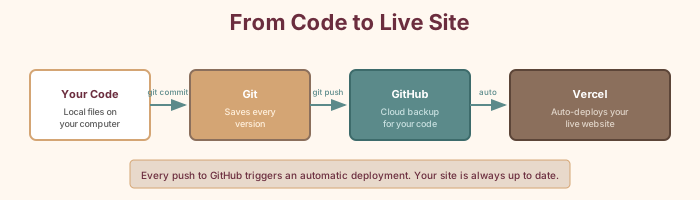
Git tracks changes to your files. Every time you make a meaningful change to your code, you tell Git, "Hey, save this version." Git remembers. If you break something tomorrow, you can go back to today's version.

GitHub is where your Git history lives online. Your computer has a copy. GitHub has a copy. They stay in sync. And when we connect GitHub to Vercel later, every time you push new code to GitHub, Vercel will automatically update your live website.

Git workflow: code to GitHub to Vercel auto-deploy

Creating the Project

Step 12: Create the Next.js project

Open your terminal and run:

npx create-next-app@latest fabulosa-scheduler

When prompted, answer:

  • TypeScript? Yes
  • ESLint? Yes
  • Tailwind CSS? Yes
  • src/ directory? No
  • App Router? Yes
  • Customize import alias? No
Step 13: Enter the project and start the dev server
cd fabulosa-scheduler
npm run dev

Open your browser and go to http://localhost:3000. You should see the Next.js welcome page.

Step 14: Install the AI SDK and Zod

Stop the dev server (Ctrl+C) and install the packages we'll need for agents:

npm install ai @ai-sdk/react zod
  • ai — the core Vercel AI SDK (agents, tools, streaming)
  • @ai-sdk/react — React hooks for chat interfaces (useChat)
  • zod — schema validation for tool inputs
Step 15: Install the Neon serverless driver
npm install @neondatabase/serverless

For local development, we'll also use a lightweight SQLite stand-in:

npm install sql.js
npm install --save-dev @types/sql-js
Putting It on GitHub

Step 16: Initialize Git and push to GitHub
git init
git add -A
git commit -m "Initial commit: Fabulosa Books multi-agent scheduler"

Go to github.com, click "+", choose "New repository", name it fabulosa-scheduler, and create it. Then run:

git remote add origin https://github.com/YOUR-USERNAME/fabulosa-scheduler.git
git branch -M main
git push -u origin main

Connecting to Vercel

Step 17: Deploy to Vercel

Go to vercel.com and sign up with your GitHub account. Click "Add New Project," find fabulosa-scheduler, and click "Import." Vercel detects it's a Next.js project automatically. Click "Deploy."

Wait about a minute. When it's done, you'll see a celebration screen with a link to your live site.

Vercel deployment success page with confetti and the live URL

Adding the Database

Step 18: Create a Neon database through Vercel

From your Vercel project dashboard, go to the "Storage" tab. Click "Create Database" and choose Neon. Create a free Postgres database and connect it to all three environments (Development, Preview, Production).

Vercel creates an environment variable called DATABASE_URL that connects your app to the database automatically.

Setting Up the AI Gateway

Step 19: Get your AI Gateway API key

Go to your Vercel dashboard → AI Gateway → API Keys. Create a new key.

Step 20: Add the API key to your project

In your Vercel project settings, go to Environment Variables and add:

AI_GATEWAY_API_KEY=your_key_here

For local development, pull the environment variables:

vercel env pull .env.local

What We've Done

Step 21: Verify your setup

You now have:

  • A Next.js project with the AI SDK, Zod, and Neon driver installed
  • A GitHub repository backing up every change
  • A Vercel deployment that auto-publishes on every push
  • A Neon database ready to store schedule data
  • An AI Gateway API key for model access

The scaffolding is up. Now let's build the foundation.