Step 36: Create the ChatPanel component
Create components/ChatPanel.tsx:
// components/ChatPanel.tsx
'use client'

import { useChat } from '@ai-sdk/react'
import { DefaultChatTransport } from 'ai'
import { useState } from 'react'
import type { AvailabilityAgentUIMessage } from '@/lib/agents/availability-agent'

const transport = new DefaultChatTransport({ api: '/api/chat' })

export default function ChatPanel() {
  const [input, setInput] = useState('')
  const { messages, sendMessage, isLoading } = useChat<AvailabilityAgentUIMessage>({
    transport,
  })

  const handleSubmit = (e: React.FormEvent) => {
    e.preventDefault()
    if (!input.trim()) return
    sendMessage({ text: input })
    setInput('')
  }

  return (
    <div className="bg-white rounded-lg border border-stone-200 shadow-sm">
      <div className="p-4 bg-stone-800 text-white rounded-t-lg">
        <h3 className="font-semibold">Schedule Assistant</h3>
      </div>

      <div className="h-96 overflow-y-auto p-4 space-y-4">
        {messages.map(message => (
          <div key={message.id} className={`flex ${
            message.role === 'user' ? 'justify-end' : 'justify-start'
          }`}>
            <div className={`max-w-[80%] rounded-lg p-3 text-sm ${
              message.role === 'user'
                ? 'bg-amber-500 text-white'
                : 'bg-stone-100 text-stone-800'
            }`}>
              {message.parts.map((part, i) => {
                switch (part.type) {
                  case 'text':
                    return <span key={i}>{part.text}</span>
                  case 'tool-getEmployees':
                  case 'tool-getSchedule':
                  case 'tool-checkAvailability':
                    return (
                      <div key={i} className="text-xs text-stone-400 italic my-1">
                        {part.state === 'output-available'
                          ? `✓ Checked ${part.type.replace('tool-', '')}`
                          : `⏳ Checking ${part.type.replace('tool-', '')}...`}
                      </div>
                    )
                  default:
                    return null
                }
              })}
            </div>
          </div>
        ))}
      </div>

      <form onSubmit={handleSubmit} className="p-4 border-t border-stone-200">
        <div className="flex gap-2">
          <input type="text" value={input}
            onChange={e => setInput(e.target.value)}
            placeholder="Ask about the schedule..."
            disabled={isLoading} />
          <button type="submit" disabled={isLoading || !input.trim()}>Ask</button>
        </div>
      </form>
    </div>
  )
}
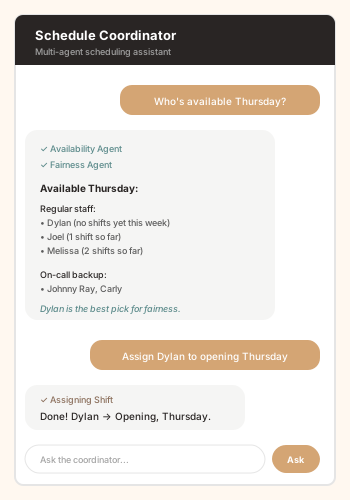
Notice how the tool parts render: when the agent calls a tool, the
UI shows "Checking..." while it runs, then "Checked" when it
completes. The user can see the agent working—not
just waiting for a final answer.
Step 37: Add the ChatPanel to the main page
Update app/page.tsx to include the chat panel
alongside the schedule grid:
// app/page.tsx
import ScheduleGrid from '@/components/ScheduleGrid'
import ChatPanel from '@/components/ChatPanel'

export default function Home() {
  return (
    <main className="min-h-screen bg-stone-50 p-8">
      <div className="max-w-7xl mx-auto">
        <header className="mb-8">
          <h1 className="text-3xl font-bold text-stone-800">Fabulosa Books</h1>
          <p className="text-stone-500 mt-1">Employee Schedule</p>
        </header>
        <div className="grid grid-cols-1 lg:grid-cols-3 gap-8">
          <div className="lg:col-span-2"><ScheduleGrid /></div>
          <div><ChatPanel /></div>
        </div>
      </div>
    </main>
  )
}
Step 38: Test your first agent
npm run dev
Open http://localhost:3000. You should see the
schedule grid on the left and the chat panel on the right. Try
these prompts:
- "Who's available this Thursday?"
- "Show me this week's schedule"
- "Which on-call staff are available Saturday?"
Full-page screenshot showing the schedule grid (left, ~2/3 width)
and the chat panel (right, ~1/3 width) side by side
The agent queries the database, reasons about the results, and
responds in natural language. It's not guessing—it's
checking real data with real tools.
Step 39: Push and deploy
git add -A
git commit -m "Add Availability Agent with chat interface"
git push
Vercel deploys automatically. In about a minute, your live app has
an AI scheduling assistant.